Got a project in mind?
We’d love to hear about it.

Get in touch
Yellow Peach web design agency

How to Speed Up a WordPress Website (Core Web Vitals 2026)

Yellow Peach
written by Gemma

Guides

A slow website frustrates visitors, reduces conversions and can make it harder to compete in search results.

While WordPress itself is capable of delivering excellent performance, not every WordPress website is built the same. Hosting, themes, plugins, images, third-party scripts and even the way content is structured can all have a significant impact on speed.

The good news is that most performance problems are fixable.

This guide explains how to diagnose what’s actually slowing your website down before walking through the biggest opportunities to improve WordPress performance. We’ll cover everything from Core Web Vitals and image optimisation through to caching, hosting and the tools we use to benchmark websites ourselves.

The aim isn’t to help you achieve a perfect 100/100 PageSpeed score. It’s to help you build a faster website that provides a better experience for your visitors.

At a glance

  • Most WordPress performance issues are caused by images, hosting, JavaScript or poorly optimised themes and plugins – not WordPress itself.
  • Core Web Vitals remain an important way of measuring user experience, but they shouldn’t be viewed in isolation.
  • Don’t start optimising until you’ve identified the real bottleneck.
  • Better hosting often delivers a greater performance improvement than installing another optimisation plugin.
  • Website performance isn’t something you “finish” after launch. It’s something that should be monitored and refined over time.
Editorial website

Why WordPress speed matters in 2026

Website speed has always been important, but today’s users have even higher expectations than they did a few years ago.

People expect pages to load almost instantly. If they don’t, they’ll often abandon your website before they’ve even had a chance to engage with your content.

Google also considers page experience when evaluating websites. While Core Web Vitals are only one of many ranking signals, they’re designed to measure something that’s genuinely valuable: how your website performs for real users.

If you’re unfamiliar with these metrics, we’ve covered them in more detail in our guide to Core Web Vitals Explained for Business Owners, which explains what they mean and why they matter.

The three Core Web Vitals are:

Largest Contentful Paint (LCP)

LCP measures how quickly the largest visible piece of content loads on the page.

On many websites this is:

  • The hero image
  • A large heading
  • A featured image
  • A hero carousel

A slow LCP is commonly caused by:

  • Oversized images
  • Slow hosting
  • Render-blocking CSS or JavaScript
  • Poor server response times

Interaction to Next Paint (INP)

INP measures how responsive your website feels when someone interacts with it.

For example:

  • Clicking a button
  • Opening a menu
  • Filtering products
  • Submitting a form

Large amounts of JavaScript or inefficient scripts can significantly impact responsiveness.

Cumulative Layout Shift (CLS)

CLS measures visual stability.

If you’ve ever tried clicking a button only for the page to suddenly move because an advert, font or image loaded afterwards, you’ve experienced poor CLS.

It’s frustrating for users and often relatively straightforward to improve by reserving space for content before it loads.

A fast website isn’t always a perfect-scoring website

One of the biggest misconceptions surrounding website performance is that every website should score 100/100 in Google PageSpeed Insights.

In reality, that’s rarely the goal.

Content-heavy publishing websites, ecommerce stores and highly interactive applications often have to balance performance with functionality and user experience.

For example, a publisher may rely on advertising scripts, recommendation engines, analytics platforms and personalised content. Removing those services might improve a Lighthouse score, but it could also reduce revenue or make the website less useful.

Likewise, many modern marketing websites use animation, video and rich interactions to create memorable user experiences. While those features inevitably introduce some performance overhead, they may also improve engagement and conversion rates.

Performance should always be viewed in context.

A website that scores 88 while delivering an outstanding user experience is often far more successful than one scoring 100 after removing functionality visitors actually value.

The objective isn’t to chase numbers. It’s to deliver the fastest experience possible without compromising the purpose of the website.

Before you optimise anything, diagnose the problem

One of the biggest mistakes people make is installing optimisation plugins before understanding what’s actually causing the slowdown.

Performance problems rarely have a single solution.

Sometimes the bottleneck is the server.

Sometimes it’s an unoptimised hero image.

Sometimes it’s a third-party marketing script that’s blocking the page from rendering.

If you don’t identify the cause first, you’re simply guessing.

Instead, begin by benchmarking your website using a combination of performance tools.

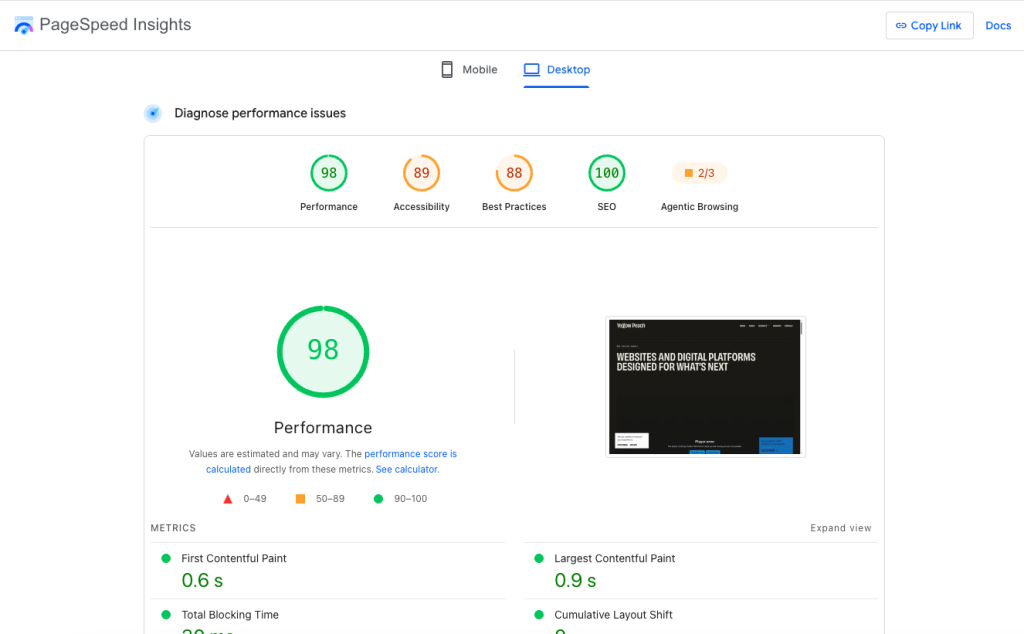
PageSpeed Insights

Google PageSpeed Insights

Google PageSpeed Insights should usually be your starting point.

It analyses individual pages and provides recommendations based on Google’s Lighthouse engine, alongside real-world performance data collected from Chrome users where sufficient traffic exists.

It’s particularly useful for highlighting issues affecting:

  • Core Web Vitals
  • Accessibility
  • Best practices
  • SEO
  • Overall page performance

Don’t treat the score itself as the objective. Focus on understanding why Google is highlighting particular opportunities.

Google Search Console

Unlike PageSpeed Insights, Search Console reports how your website performs using data collected from real visitors over time.

This makes it particularly useful for identifying recurring Core Web Vitals issues across your website rather than individual pages.

One thing to remember is that this data isn’t updated instantly. Field data is collected over approximately 28 days, meaning improvements can take several weeks before they’re reflected in the reports.

Chrome DevTools

Modern browsers include incredibly powerful developer tools that are often overlooked. Chrome DevTools can help identify:

  • Layout shifts as they happen
  • Render-blocking resources
  • Slow JavaScript execution
  • Network bottlenecks
  • Long-running tasks
  • Performance timelines

When investigating issues such as Cumulative Layout Shift, Chrome’s Performance tools are often far more useful than repeatedly running PageSpeed Insights because they allow you to see exactly what’s happening in real time.

Lighthouse

While PageSpeed Insights uses Lighthouse behind the scenes, running Lighthouse locally gives developers much faster feedback.

Rather than waiting for field data to update over several weeks, you can immediately measure the impact of performance improvements as they’re made.

During development, we frequently use Lighthouse through Chrome DevTools or via Lighthouse CLI to benchmark websites locally while making iterative improvements. This makes it much easier to compare before-and-after results without repeatedly publishing changes and waiting for external reports to refresh.

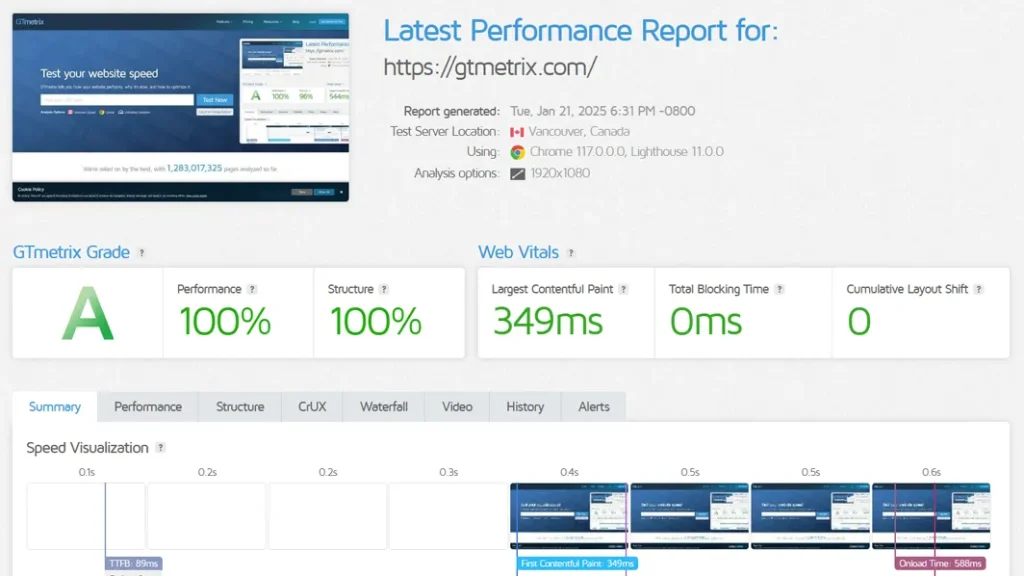
gtmetrix

GTmetrix

GTmetrix complements Google’s own tools by providing additional insights into how a page loads. Its waterfall charts are particularly useful for identifying:

  • Slow server responses
  • Large images
  • Blocking JavaScript
  • Slow third-party requests
  • Individual assets delaying page rendering

No single tool tells the whole story. Using several together provides a much clearer picture of where genuine performance bottlenecks exist.

Lab data vs field data

Understanding the difference between these two measurements helps avoid a lot of confusion.

Lab data is generated by running a simulated performance test under controlled conditions. It’s repeatable, available immediately and ideal when developing or troubleshooting websites.

Field data measures how your website performs for real users over time, taking into account different devices, network speeds and locations.

Both are valuable.

Lab data helps you improve performance today.

Field data tells you whether those improvements are benefiting your visitors in the real world.

That’s why we generally rely on Lighthouse and Chrome DevTools while making improvements, before validating those changes using PageSpeed Insights and Search Console over time.

With a solid understanding of how to measure performance, the next step is identifying the most common causes of a slow WordPress website – and, more importantly, which improvements will have the biggest impact.

The most common causes of a slow WordPress website

One of the reasons WordPress has a reputation for being “slow” is that it’s incredibly flexible.

The platform itself is capable of delivering excellent performance. However, it’s also possible to build websites using thousands of different themes, plugins, hosting providers and third-party services, each with their own impact on speed.

In our experience, most performance issues fall into one of four categories:

  • Infrastructure (hosting and server configuration)
  • WordPress architecture (themes, plugins and page builders)
  • Front-end assets (images, fonts, CSS and JavaScript)
  • Third-party services (analytics, chat widgets, advertising and tracking scripts)

Let’s look at each in more detail.

1. Start with your hosting

If there’s one area that’s consistently underestimated, it’s hosting.

Many people spend hours tweaking CSS or installing optimisation plugins while their website is running on underpowered hosting that simply can’t keep up with demand.

Your hosting directly affects:

  • Server response times (TTFB)
  • PHP execution
  • Database performance
  • Concurrent visitors
  • Overall stability

If your server is struggling, every page request becomes slower before the browser has even started downloading your website.

Shared vs managed hosting

Shared hosting can be an excellent low-cost option for small brochure websites or personal projects. However, as traffic increases or websites become more dynamic, it’s often the first bottleneck.

Managed WordPress hosting typically provides:

  • Faster infrastructure
  • Better caching
  • Modern PHP versions
  • Optimised databases
  • Better resource allocation
  • Improved security
  • Expert support

It’s one of the few improvements that can positively affect every page of your website without changing a single line of code.

2. Themes and page builders

Your website’s starting point has a huge influence on performance.

Off-the-shelf themes and visual page builders make it possible to build websites quickly, and for many businesses they’re a perfectly sensible choice.

The trade-off is flexibility.

To support hundreds of different layouts and features, these tools often load significantly more CSS, JavaScript and markup than an individual page actually needs.

That doesn’t mean they’re “bad”.

Many well-built Elementor, Bricks and GeneratePress websites perform extremely well.

However, there is often a practical ceiling to how much optimisation is possible before the underlying architecture becomes the limiting factor.

A bespoke WordPress website allows developers much greater control over:

  • What assets load on each page
  • The HTML output
  • CSS architecture
  • JavaScript execution
  • Component loading

That flexibility makes achieving consistently strong Core Web Vitals considerably easier.

3. More plugins don’t automatically make WordPress slow

This is probably the biggest myth surrounding WordPress performance.

It’s easy to assume that fewer plugins automatically means a faster website. In reality, the quality of the code matters far more than the quantity.

One poorly written plugin performing expensive database queries can have a much bigger impact than twenty well-written plugins that do very little on the front end.

Instead of asking:

“How many plugins do I have?”

Ask:

  • Are they actively maintained?
  • Are they actually needed?
  • Are multiple plugins doing the same job?
  • Do they load assets across the entire website unnecessarily?
  • Are they affecting Core Web Vitals?

Regular plugin audits are one of the easiest ways to improve long-term performance.

Use image compression plugins

4. Images remain one of the biggest opportunities

Large, unoptimised images continue to be one of the most common causes of poor Core Web Vitals.

On many websites, the Largest Contentful Paint (LCP) element is simply the hero image. If that image is oversized, poorly compressed or served in an outdated format, the entire page feels slower.

Good image optimisation includes:

  • Resizing images appropriately
  • Compressing files before upload
  • Serving modern formats such as WebP or AVIF
  • Lazy loading below-the-fold images
  • Providing responsive image sizes
  • Specifying image dimensions to avoid layout shift

Rather than repeating everything here, we’ve covered this topic in much more detail in our guide to How to Optimise Images for Web Performance, including practical recommendations for WordPress websites.

5. Implement effective caching

Caching reduces the amount of work your server has to perform each time someone visits your website.

Without caching, WordPress generates every page dynamically. With caching, much of that work has already been completed.

There are several different types of caching:

Page caching

Stores pre-generated versions of pages so they can be served much more quickly.

Browser caching

Allows visitors’ browsers to reuse previously downloaded files instead of requesting them again.

Object caching

Stores the results of repeated database queries, reducing server load on dynamic websites.

Different websites benefit from different caching strategies, which is why there isn’t a single plugin that’s right for every project.

Cloudflare CDN

6. Use a Content Delivery Network (CDN)

A CDN stores copies of your website across multiple locations around the world.

Instead of every visitor downloading files from a single server, assets are served from the location closest to them.

Benefits include:

  • Faster global performance
  • Reduced server load
  • Better resilience during traffic spikes
  • Improved image delivery
  • Additional security features

Services such as Cloudflare have become an essential part of many modern WordPress hosting environments.

7. Reduce unnecessary CSS and JavaScript

Every stylesheet and script your website loads adds work for the browser.

The objective isn’t necessarily to remove them all. It’s to ensure only the files that are genuinely required are being loaded.

Common optimisation techniques include:

  • Removing unused CSS
  • Deferring non-critical JavaScript
  • Inlining critical CSS
  • Delaying third-party scripts until user interaction
  • Reducing render-blocking resources

Small improvements across multiple assets often combine to produce significant gains.

8. Don’t overlook web fonts

Fonts rarely receive the same attention as images, but they can have a noticeable impact on performance.

Best practices include:

  • Hosting fonts locally where appropriate
  • Using modern formats such as WOFF2
  • Limiting the number of font families and weights
  • Using variable fonts where possible
  • Preloading critical fonts

Fonts also contribute to visual stability, helping reduce Cumulative Layout Shift when implemented correctly.

9. Audit third-party scripts

Many websites load dozens of third-party services without anyone questioning whether they’re still needed.

Common examples include:

  • Analytics platforms
  • Marketing pixels
  • Cookie banners
  • Live chat
  • Video embeds
  • Social media widgets
  • Heatmaps
  • Advertising scripts

Individually they may have a relatively small impact. Collectively they can become one of the biggest contributors to slow performance.

Regularly reviewing what your website actually loads can reveal opportunities for significant improvements.

10. Optimise your database

As websites mature, databases naturally become larger.

Old revisions, expired transients, spam comments and unused data all increase the amount of information WordPress needs to process. Routine database maintenance helps keep things running efficiently.

Typical housekeeping includes:

  • Removing unnecessary post revisions
  • Clearing expired transients
  • Optimising database tables
  • Removing orphaned data
  • Reviewing scheduled tasks (WP-Cron)

While database optimisation rarely delivers dramatic improvements on its own, it’s an important part of maintaining a healthy website over the long term.

Fix the biggest bottleneck first

It’s tempting to optimise dozens of small things in pursuit of a better Lighthouse score. In reality, performance is usually constrained by one or two major bottlenecks.

That might be:

  • A slow hosting environment
  • A 4MB hero image
  • A third-party marketing script
  • A page builder loading unnecessary assets
  • Poor server configuration

Addressing those issues will almost always deliver a greater improvement than spending hours trying to save a few kilobytes of CSS.

Performance optimisation isn’t about making hundreds of tiny changes. It’s about identifying the areas that have the greatest impact and addressing them first.

Figma design concepts

How Yellow Peach approaches WordPress performance

Every website is different, so there isn’t a one-size-fits-all optimisation checklist.

Rather than immediately installing another optimisation plugin or chasing a higher Lighthouse score, we start by understanding where the real bottlenecks are.

Our typical approach looks something like this:

  1. Benchmark the website using tools such as Lighthouse, Chrome DevTools, Google PageSpeed Insights and Search Console.
  2. Identify the biggest bottlenecks, whether that’s hosting, images, JavaScript, third-party scripts or server response times.
  3. Prioritise the highest-impact improvements rather than making dozens of minor changes.
  4. Measure the results after each change to understand what actually improved performance.
  5. Continue monitoring as the website evolves.

Performance isn’t something we look at once after launch. Every new plugin, feature, marketing script or content update has the potential to affect page speed, so regular reviews are essential.

Common WordPress performance mistakes

Many websites suffer from the same avoidable issues.

Chasing a perfect PageSpeed score

A perfect score doesn’t automatically mean you’ve built a better website.

The objective should always be to improve the experience for real users, not simply increase a number in a reporting tool.

Sometimes achieving another five or ten Lighthouse points requires compromising functionality or removing features that genuinely add value.

Installing multiple optimisation plugins

It’s surprisingly common to find websites running several caching or optimisation plugins simultaneously.

These can conflict with one another, duplicate functionality and even reduce performance.

Choose tools carefully and understand what each one is responsible for.

Ignoring third-party scripts

Marketing pixels, analytics, chat widgets, cookie banners and embedded content all affect performance. These scripts are often added over several years but rarely reviewed.

Regularly auditing what your website actually loads can uncover significant optimisation opportunities.

Only testing the homepage

Many websites have a fast homepage but slower article pages, product pages or landing pages.

Always test the templates that visitors actually use, particularly those generating the most traffic or revenue.

Performance is an ongoing process

Launching a fast website is only the beginning.

Over time, websites naturally change.

New content is published.

Plugins are installed.

Marketing campaigns introduce additional scripts.

Teams upload larger images.

Features are added.

Without regular reviews, performance gradually declines. That’s why we recommend treating website performance as part of your ongoing maintenance strategy rather than a one-off project.

Small improvements made consistently are usually far more effective than waiting until performance has noticeably deteriorated.

Final thoughts

WordPress is capable of delivering exceptionally fast websites.

When performance problems occur, they’re rarely caused by WordPress itself. More often, they’re the result of hosting limitations, unoptimised assets, inefficient code or years of incremental changes that have gradually slowed the website down.

The key is to approach optimisation methodically.

Benchmark first.

Identify the biggest bottlenecks.

Make targeted improvements.

Measure the results.

Then repeat the process as your website continues to grow.

If you’re struggling to improve your website’s performance or simply want a second opinion, we’re always happy to review your existing setup and help identify the changes likely to have the greatest impact.

Share this article

FAQs

  • Why is my WordPress website so slow?

    The most common causes are underpowered hosting, oversized images, poorly optimised themes or plugins, excessive JavaScript and third-party scripts. Before making changes, it’s important to diagnose the real bottleneck using tools such as Google PageSpeed Insights or Chrome DevTools.

Looking for an answer that’s not here?

Get in touch

Ready to push your platform?

Ready to push your platform?

Ready to push your platform?

Ready to push your platform?

Ready to push your platform?

Ready to push your platform?

Ready to push your platform?

Ready to push your platform?

Ready to push your platform?

Ready to push your platform?

Ready to push your platform?

Ready to push your platform?

Ready to push your platform?

Ready to push your platform?

Ready to push your platform?

Ready to push your platform?

Ready to push your platform?

Ready to push your platform?

Ready to push your platform?

Ready to push your platform?

Ready to push your platform?

Ready to push your platform?

Ready to push your platform?

Ready to push your platform?

Ready to push your platform?

Ready to push your platform?

Ready to push your platform?

Ready to push your platform?

Ready to push your platform?

Ready to push your platform?

Ready to push your platform?

Ready to push your platform?