Got a project in mind?
We’d love to hear about it.

Get in touch
Yellow Peach web design agency

A website can look perfectly healthy on the surface while problems quietly build underneath it. Outdated software, missed security updates, failed backups and broken integrations often go unnoticed until they cause downtime, lost enquiries or a much bigger technical issue.

Even if you haven’t changed a single word on your website for six months, plenty will have changed behind the scenes. Your CMS may have released updates, plugins and integrations will have evolved, new security vulnerabilities may have been discovered and the environment your website runs on will continue to change.

Leave those things unattended for long enough and problems tend to accumulate. Updates become harder to manage, security risks remain unresolved, backups go unchecked and functionality that once worked perfectly can quietly stop behaving as expected.

Regular website maintenance is how you stay ahead of that.

The good news is that maintaining a website doesn’t have to be particularly complicated. For a straightforward website, many of the tasks can be handled internally with a sensible routine and the right tools.

This guide covers what website maintenance involves, the tasks worth checking and how frequently we’d recommend looking at them. We’ve also put together a practical website maintenance checklist you can use as a starting point for your own site.
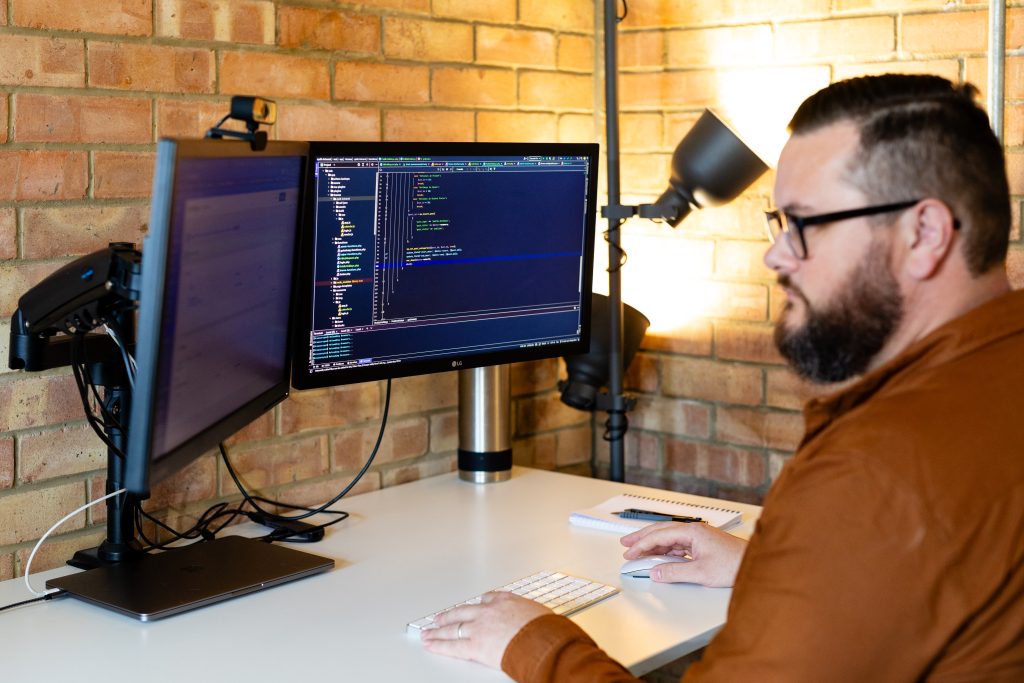
What is website maintenance?

Website maintenance is the ongoing work required to keep a website secure, functional, backed up and performing as expected.

For a WordPress website, this typically means keeping WordPress core, plugins and themes up to date, monitoring for security vulnerabilities, maintaining reliable backups and checking that important functionality continues to work.

It can also involve reviewing server logs, monitoring uptime and keeping an eye on website performance.

The important point is that maintenance is an ongoing responsibility rather than something you do once. A website might look largely the same from one month to the next, but the technology supporting it doesn’t stand still. WordPress changes, plugins release new versions, PHP evolves, hosting environments are updated and third-party services alter the way their integrations work.

Regular maintenance helps you manage those changes rather than waiting for them to cause a problem.

Website maintenance guide

Why is regular website maintenance important?

The most obvious reason to maintain a website is security.

WordPress itself is actively maintained, as are most reputable plugins and themes. When vulnerabilities are identified, developers frequently release updates to address them. If those updates aren’t applied, your website can remain exposed to a known vulnerability long after a fix is available.

But security is only part of the picture.

Websites are made up of multiple moving parts. WordPress, plugins, themes, databases, server software and third-party integrations all need to work together. Updating one can occasionally affect another, while leaving everything untouched indefinitely creates its own compatibility problems.

Maintenance also helps protect against less dramatic but still important issues. Your contact form could stop delivering emails. An API integration could begin returning errors. Website performance could gradually deteriorate. An SSL certificate could fail to renew. Your backup system could stop running without anybody noticing.

None of these necessarily causes the whole website to disappear. In fact, that’s often the problem: a website can appear to be working perfectly while something important underneath it isn’t.

A good maintenance routine gives you a much better chance of finding those problems before your customers do.

How to maintain your website

The exact maintenance requirements will depend on the website. A small brochure website with a contact form needs considerably less attention than an ecommerce website processing hundreds of orders or a membership platform connected to multiple external services.

However, there are several areas almost every website owner should consider.

Keep your CMS, plugins and themes updated

If you’re using WordPress, you’ll regularly see updates available for WordPress core, plugins and potentially your theme.

Those updates can contain new functionality, bug fixes, compatibility improvements and security patches. Keeping on top of them prevents your website gradually falling behind the software it depends upon.

That doesn’t mean we’d recommend logging into your website and blindly clicking Update All whenever something appears.

Updates can introduce unexpected behaviour, particularly on more complicated websites. A plugin might have changed something that affects another plugin, your theme or custom code written specifically for your website.

The safer approach is to understand what you’re updating and test changes before introducing them to your live website.

At Yellow Peach, we carry out maintenance using local and staging environments first. Updates can be applied and key functionality checked away from production before the changes are released to the live website.

You don’t necessarily need that level of workflow for a very simple personal website, but the principle remains the same: the more important your website is, the less you should rely on hoping an update works.

Monitor for security vulnerabilities

Software updates and security go hand in hand, but you shouldn’t rely solely on checking the WordPress dashboard once a month.

Security vulnerabilities can be discovered at any time. If a critical vulnerability is identified in a plugin your website uses, waiting three weeks until your next planned maintenance session doesn’t make much sense. That’s why vulnerability monitoring should ideally happen continuously.

There are various WordPress security tools and external services capable of alerting you when vulnerabilities affecting your software are identified.

Depending on your website, sensible security measures can also include:

  • Two-factor authentication for administrator accounts.
  • Strong password policies.
  • Limiting login attempts.
  • Application firewalls.
  • Restricting unnecessary administrator access.
  • Monitoring suspicious activity.
  • Keeping WordPress and its dependencies updated.

We use external monitoring services across the websites we maintain so that significant security issues can be assessed when we’re alerted to them rather than waiting for the next scheduled maintenance cycle.

No combination of tools can guarantee that a website will never be compromised, but keeping software maintained and responding quickly to known vulnerabilities significantly reduces unnecessary exposure.

Take regular off-site backups

Every website should have a backup strategy.

The frequency you need will depend largely on how often the data changes. For a brochure website that receives an occasional content update, losing a day’s worth of data might make almost no difference. For an ecommerce website receiving orders throughout the day, the same 24-hour period could represent valuable customer and transaction data.

For many websites, daily backups provide a sensible baseline.

Where those backups are stored is just as important. If your only backup sits on the same server as your website, you’re still dependent on that infrastructure being available. A serious server or hosting failure could potentially affect both the website and the backup you’re relying on.

That’s why we’d recommend maintaining off-site backups independently of your production environment.

For the websites we host and maintain, we back up data daily to two independent external providers as part of our disaster recovery process. It gives us another layer of redundancy should we ever need to recover a website.

Check that your backups actually work

Creating backups is only half the job. You also need confidence that you can recover from them.

A backup system can fail silently, storage can become unavailable or an archive can become corrupted. Finding that out for the first time while trying to recover a broken website is far from ideal.

Periodically check that backups are completing successfully and that the expected files and database information are present. For business-critical websites, it’s also worth testing the restoration process itself.

Think of the question as less “Do we have backups?” and more “If our website disappeared today, could we recover it?”

The second question is far more useful.

Monitor website uptime

You don’t want customers to be your uptime monitoring system.

Automated monitoring services can regularly request your website and notify you if it stops responding. That means an outage can be investigated much sooner, potentially before many visitors are affected.

Uptime monitoring is particularly useful because it can run continuously without anybody manually checking the website. However, there’s another part that’s easy to overlook: who receives the alert?

Make sure notifications go somewhere they’ll actually be seen and that it’s clear who is responsible for investigating them.

If your website is commercially critical outside normal working hours, you should also consider what happens when an alert arrives at 2am on a Sunday.

Test the functionality that matters

Opening the homepage and seeing that it loads doesn’t tell you whether your website is working properly.

Think about the actions you actually need visitors to complete.

For a typical business website, that might include:

  • Submitting an enquiry form.
  • Clicking an important call-to-action.
  • Using website search.
  • Signing up to a newsletter.
  • Downloading a document.
  • Completing a booking.

For ecommerce websites, you may also need to check:

  • Adding products to the basket.
  • Applying discounts.
  • Creating an account.
  • Logging in.
  • Completing checkout.
  • Payment gateway integrations.
  • Order confirmation emails.
  • Connections to fulfilment or stock systems.

The more complex the website, the more important these checks become. Create a short list of your website’s critical user journeys and use it during maintenance. That makes testing consistent and prevents important functionality being forgotten.

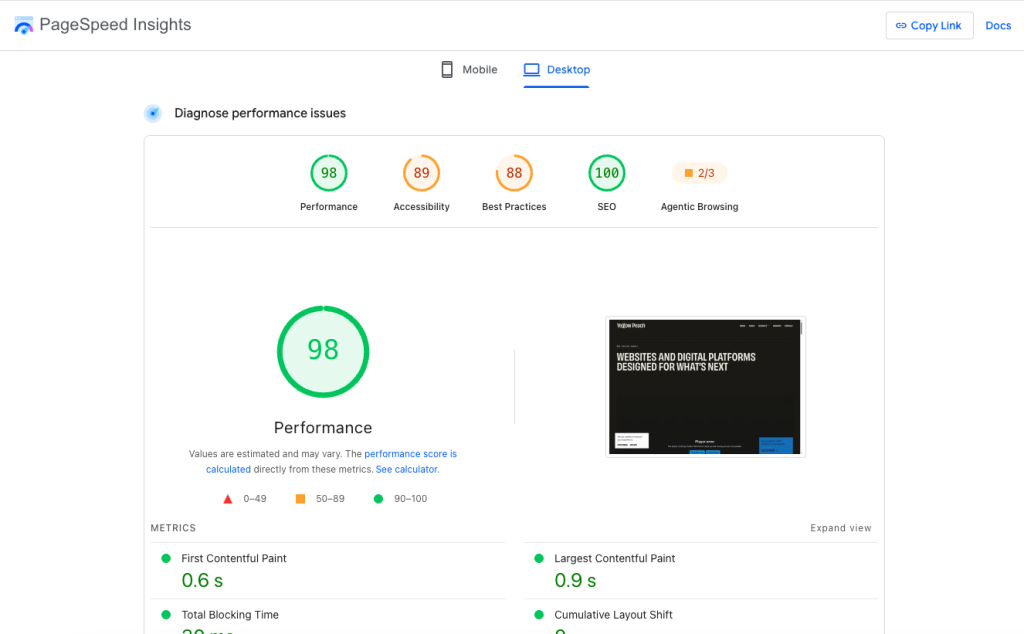
PageSpeed Insights

Review website performance

Websites have a habit of becoming heavier over time.

New images get uploaded, marketing scripts are added, plugins accumulate and databases grow. Individually, each change might seem insignificant, but together they can gradually affect performance.

Keeping an eye on website speed helps you identify that deterioration. Google PageSpeed Insights and Lighthouse can provide useful diagnostics, while Core Web Vitals can help highlight aspects of the real-world user experience that need attention.

Don’t become obsessed with achieving a perfect score, though.

We’ve worked on plenty of content-heavy, interactive and dynamic websites where chasing a score in the high 90s on mobile would mean sacrificing functionality or visual experiences that provide genuine value to users. Performance needs context.

What you’re looking for during routine maintenance is often change. If a website that previously performed well has suddenly become noticeably slower, something deserves investigation.

For a deeper look at this, read our guide to Core Web Vitals for business owners. We’ve also covered how to optimise images for web performance, which is one of the most common areas where websites accumulate unnecessary weight.

Check your website and server logs

Not every technical problem produces an obvious error page.

Server and application logs provide information about what’s happening underneath your website and can reveal problems that aren’t immediately visible to visitors.

You don’t necessarily need to understand every line in a server log. You’re looking for patterns: repeated errors, failed requests, PHP warnings or unexpected behaviour appearing regularly.

For example, a plugin could still appear to function while generating errors every time a particular page loads. Left unresolved, that might eventually create a more serious issue or unnecessarily consume server resources.

We include log reviews as part of our own maintenance process because they give us another view of the website beyond simply looking at the frontend.

If you’re maintaining your own website and repeatedly see errors you don’t understand, that’s usually a good point to ask a developer to investigate rather than simply ignoring them.

Review user accounts and permissions

WordPress user accounts tend to accumulate.

Employees leave, agencies change and temporary accounts created for developers or suppliers remain active long after they’re needed.

Periodically review who has access to your website and remove accounts that are no longer required. Pay particular attention to administrator accounts. Users should generally have the lowest level of access necessary to do their job rather than everybody being given full administrative permissions for convenience.

For accounts with significant privileges, we’d also strongly recommend enabling two-factor authentication.

It’s a simple maintenance task, but one that reduces unnecessary routes into your website.

Check your SSL certificate, domain and renewals

Some of the most disruptive website problems have remarkably mundane causes.

Domains expire. Payment cards attached to services change. Licences don’t renew. SSL certificates fail.

Modern hosting platforms generally automate SSL certificate renewal, so this shouldn’t require much manual intervention. However, monitoring still provides reassurance that something hasn’t gone wrong.

Your domain is even more important. Make sure it’s registered to the correct organisation, contact details are current and automatic renewal is configured where appropriate.

It’s also worth keeping track of important third-party services and licences the website depends upon. A premium plugin or external API unexpectedly losing access can affect functionality just as easily as a WordPress problem.

Remove plugins, themes and software you no longer need

Websites naturally accumulate software over time.

Someone installs a plugin to test something. An old integration is replaced. A previous theme remains installed. A marketing tool stops being used but nobody removes its WordPress plugin.

If something is no longer required, consider removing it. Unused software creates additional maintenance overhead and potentially expands the number of things that could contain a security vulnerability.

That doesn’t mean deleting things without understanding what they do. Before removing a plugin, make sure it genuinely isn’t being used by the website.

But a periodic tidy-up is worthwhile. A WordPress installation shouldn’t become a graveyard of plugins nobody remembers installing.

Custom WordPress website

Website maintenance checklist

The right maintenance schedule depends on your website. A five-page brochure website and a busy WooCommerce store shouldn’t receive identical levels of maintenance, so treat the frequencies below as a sensible starting point rather than fixed rules.

The more complex or commercially important your website becomes, the more frequently some of these checks may need to take place.

Continuous or automated maintenance

These are ideal candidates for automated tools that can run in the background and alert you when something requires attention.

  • Monitor website uptime.
    Use an uptime monitoring service to regularly check that your website is responding and alert you if it becomes unavailable.
  • Monitor known security vulnerabilities.
    Keep track of newly disclosed vulnerabilities affecting your CMS, plugins, themes and other software so serious issues can be addressed promptly.
  • Run automated website backups.
    Schedule regular backups of both your website files and database. Daily backups are a sensible baseline for many business websites, with more frequent backups appropriate for sites where data changes constantly.
  • Store backups independently from the production website.
    Keep at least one backup off-site rather than relying entirely on the same server or hosting infrastructure as your live website.
  • Monitor SSL certificate status.
    SSL renewal is usually automated by modern hosting platforms, but monitoring can alert you if a certificate fails to renew or develops a configuration problem.
  • Configure alerts for critical website failures.
    Where possible, monitor important services rather than just the homepage. A website can be online while a critical service or integration is failing.
  • Make sure alerts reach somebody who can act on them.
    Monitoring isn’t much use if notifications disappear into an unattended inbox. Make sure there’s clear responsibility for investigating important alerts.

Monthly website maintenance

For many business websites, we’d consider monthly scheduled maintenance a sensible baseline. More complex or business-critical websites may require these checks more frequently.

  • Review available CMS updates.
    Check for updates to WordPress or whichever CMS your website uses, paying particular attention to releases containing security or compatibility fixes.
  • Review plugin and theme updates.
    Look at what’s changing rather than automatically updating everything at once. Major releases in particular may require more careful testing.
  • Check for known vulnerabilities affecting installed software.
    Don’t assume that having no obvious update notification means everything is secure. Check your vulnerability monitoring for issues requiring action.
  • Confirm you have a current backup before making changes.
    If an update causes a serious problem, you want a reliable recovery point from immediately before the maintenance work began.
  • Apply significant updates away from production where possible.
    Use a local or staging environment to identify compatibility problems without putting the live website at unnecessary risk.
  • Test important functionality after updating.
    Don’t stop when the CMS tells you an update was successful. Check that the functionality your visitors rely on still behaves as expected.
  • Release tested updates to the live website.
    Once you’re happy with the changes, deploy them to production using a controlled process rather than making unnecessary changes directly on the live site.
  • Check forms are submitting correctly.
    Submit your key forms yourself and confirm that notifications arrive where expected. A form can appear to work while emails or CRM integrations silently fail.
  • Test your most important user journeys.
    Check the actions that matter commercially, such as enquiries, registrations, bookings, account logins or ecommerce checkout.
  • Review server and application logs.
    Look for repeated errors, warnings or unusual behaviour that could indicate a problem even when the frontend appears normal.
  • Investigate recurring errors or warnings.
    Don’t allow the same technical errors to appear month after month simply because they haven’t visibly broken the website yet.
  • Check website performance for unexpected deterioration.
    Compare performance with previous results and investigate significant changes rather than focusing solely on achieving a particular PageSpeed score.
  • Confirm automated backups are completing successfully.
    Check that recent backups actually exist, contain the expected data and are being stored in the intended locations.
  • Review uptime and security alerts from the previous month.
    Look for recurring outages, suspicious activity or patterns that could indicate a wider issue worth investigating.

Quarterly website maintenance

Every few months, step beyond routine updates and take a broader look at the health of the website and the people, software and services surrounding it.

  • Review all website user accounts.
    Check whether everyone with access still needs it, particularly accounts created for former employees, agencies, developers or temporary suppliers.
  • Remove users who no longer require access.
    Old accounts create unnecessary security risk and should be removed or disabled when they’re no longer needed.
  • Review administrator permissions.
    Not everybody needs full administrator access. Give users the lowest level of permission necessary to perform their role.
  • Confirm two-factor authentication is enabled where appropriate.
    Administrator and other privileged accounts should ideally require an additional authentication method beyond a password.
  • Review installed plugins and remove anything genuinely unused.
    Every unnecessary plugin adds another piece of software to maintain and potentially another source of vulnerabilities.
  • Remove unused themes where appropriate.
    Old themes can also contain vulnerabilities, so avoid keeping a collection of unused themes installed without a reason.
  • Test key forms and conversion journeys more comprehensively.
    Go beyond a basic submission and check validation, confirmation messages, notification emails and any connections to external systems.
  • Check important third-party integrations.
    Make sure services such as CRMs, payment gateways, email platforms, search tools and other external systems are still exchanging data correctly.
  • Review API connections.
    Check for authentication errors, deprecated APIs or upcoming changes from external providers that may eventually affect functionality.
  • Review hosting resource usage.
    Look at whether traffic, storage, memory, CPU usage or database requirements have changed significantly and whether your hosting remains appropriate.
  • Check database health where appropriate.
    Larger or more dynamic websites can accumulate unnecessary database overhead. Look for unusual growth, slow queries or other issues that warrant investigation.
  • Test a recent backup or review your recovery process.
    Periodically verify that your backups can actually be used to restore the website rather than simply trusting that the backup job completed.
  • Confirm monitoring alerts still reach the right people.
    Teams change. Check that downtime, security and infrastructure alerts aren’t still being sent to somebody who left six months ago.
Web designer

Annual website maintenance

An annual review is an opportunity to look beyond individual updates and consider whether the wider technical setup is still appropriate for the website you have today.

  • Confirm your domain ownership and renewal details.
    Make sure the domain is registered correctly, contact information is current and renewal won’t depend on an expired payment card or former employee.
  • Review important software and service licences.
    Check premium plugins, external platforms and other services the website depends on, including renewal dates and account ownership.
  • Review your hosting environment.
    Consider whether your current hosting still provides appropriate performance, resources, security and support for the website.
  • Review supported PHP and server software versions.
    Make sure the underlying environment is running actively supported software and plan upgrades before older versions reach end of life.
  • Review your backup and disaster recovery process.
    Consider what would happen if the entire production environment became unavailable and whether your current backups would allow you to recover confidently.
  • Check ownership of key organisational accounts.
    Important services shouldn’t exist solely inside a former employee’s or supplier’s personal account. Make sure the business retains appropriate access.
  • Consider a wider website performance audit.
    Routine checks identify deterioration, but a deeper annual review can uncover opportunities around frontend performance, database efficiency, hosting and third-party scripts.
  • Consider an accessibility audit.
    Check whether new content, functionality and design changes introduced during the year continue to meet the accessibility standards you’re working towards.
  • Review whether your maintenance frequency is still appropriate.
    A website may have grown considerably since its maintenance process was established. Increased traffic, ecommerce, new integrations or greater commercial importance may justify more frequent checks.
  • Document what happens if your website becomes unavailable.
    Make sure it’s clear who receives alerts, who has the necessary access, who investigates the issue and how the website would be recovered if required.

If the website went offline tomorrow morning, who would notice, who would be alerted and who would know what to do next?

If those questions don’t have clear answers, that’s worth fixing.

How often should you maintain a website?

For many websites, we find that monthly scheduled maintenance is enough to maintain a good level of security and technical health.

But frequency should be determined by risk rather than an arbitrary schedule.

A straightforward brochure website that changes infrequently doesn’t need the same maintenance regime as an ecommerce store receiving thousands of visitors and processing orders throughout the day.

As a general starting point:

Website Maintenance approach
Small brochure website Monthly scheduled maintenance
Active business/marketing website Monthly maintenance + continuous monitoring
Ecommerce website More frequent checks + continuous monitoring
Membership or platform website More frequent checks + continuous monitoring
Business-critical website Bespoke schedule + active monitoring


These aren’t hard rules. Complexity matters too. A relatively low-traffic website with numerous integrations could require more attention than a much busier but technically straightforward website.

There’s also one important exception to any schedule: security.

If a serious vulnerability is discovered today, don’t wait until next month’s maintenance day to address it. Vulnerability monitoring should run continuously, with critical issues assessed as they arise.

Can website maintenance be automated?

A significant amount of website maintenance can and should be automated.

Backups are an obvious example. There’s little reason for somebody to manually download a copy of a website every morning when a reliable backup service can do it automatically. The same applies to uptime and vulnerability monitoring.

Automation is particularly useful for:

  • Website uptime monitoring.
  • Automated backups.
  • Security and vulnerability alerts.
  • SSL monitoring.
  • Server monitoring.
  • Scheduled scans and checks.

Where we’d be more cautious is allowing automation to make potentially disruptive changes without oversight.

WordPress allows plugins and themes to update automatically, and for some websites that’s perfectly reasonable. A simple personal site might accept the small risk involved in exchange for requiring less maintenance.

For a business-critical website, we’d prefer more control. An automated system can tell you that an update installed successfully. It can’t necessarily tell you that a particular animation now behaves incorrectly at a specific breakpoint, that your CRM stopped receiving leads or that the checkout journey has developed an unusual edge-case problem.

Automation is excellent at monitoring and repetitive tasks. Human oversight remains valuable for testing, diagnosis and deciding how to respond when something unexpected happens.

Common website maintenance mistakes

Most website maintenance mistakes aren’t particularly sophisticated. They’re usually the result of assuming that because a website looks fine, everything underneath it must also be fine.

Updating everything directly on the live website

It might work 99 times out of 100. The problem is the hundredth time.

For websites where downtime or broken functionality matters, test significant changes away from production first and have a current backup available before updating.

Assuming a successful update means the website works

The WordPress dashboard showing a green success message tells you the software updated. It doesn’t tell you whether your contact form still submits, your checkout works or your pages display correctly.

Test the things that matter after updating.

Keeping your only backup on the same server

Backups should protect you from failure, not share the same point of failure.

Maintain at least one backup independently of the infrastructure hosting the live website.

Never testing recovery

A backup you can’t restore isn’t much of a backup.

Periodically make sure your recovery process actually works.

Ignoring updates for months

Avoiding updates because you’re worried they’ll break something isn’t a sustainable maintenance strategy.

The longer software falls behind, the more changes eventually need to be introduced at once, which can make troubleshooting considerably harder.

Keeping plugins you no longer use

Unused plugins and themes still need managing and may still represent a security risk.

If software genuinely isn’t required, remove it.

Giving everyone administrator access

Most WordPress users don’t need administrator privileges.

Use appropriate roles and periodically review who still needs access.

Only checking the homepage

Your homepage can look perfect while your contact form, checkout or account area is broken.

Identify your website’s critical functionality and test that instead.

Waiting for customers to report downtime

Use automated monitoring.

A customer shouldn’t need to tell you that your own website is unavailable.

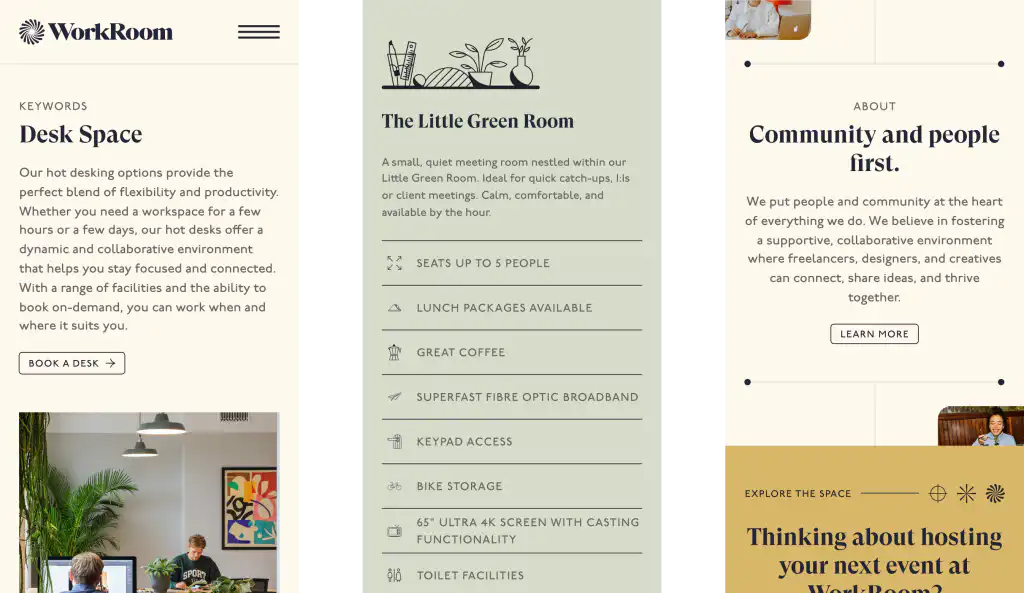
WorkRoom mobile website designs

Should you maintain your website yourself?

For plenty of websites, yes.

If you’ve got a relatively simple website, you’re comfortable using WordPress and you’re willing to follow a regular maintenance process, there’s no reason you can’t take care of much of this yourself.

A good hosting platform can remove some of the infrastructure burden, while backup, uptime and security tools can automate many of the repetitive tasks.

The question becomes more difficult as the website grows in complexity or importance.

Installing an update is straightforward. Diagnosing why that update has caused a fatal PHP error is less so. Running a backup is easy. Recovering a compromised website safely, identifying how the compromise occurred and making sure it doesn’t immediately happen again requires more expertise.

The decision therefore shouldn’t just be based on whether you’re capable of completing the routine checklist.

Ask yourself: What happens when the routine stops being routine?

If your website can be unavailable for a day without materially affecting the business, you may be comfortable dealing with problems as they arise. If downtime means lost sales, missed enquiries, frustrated customers or operational disruption, having experienced technical support available starts to become considerably more valuable.

Professional WordPress website maintenance

For organisations that don’t want to manage this internally, a professional maintenance service can take responsibility for the technical health of the website.

At Yellow Peach, most of the WordPress websites we maintain go through a scheduled maintenance cycle once a month, with more frequent maintenance available where the website requires it.

We test WordPress and plugin updates through local and staging environments before releasing them to production, checking important functionality as part of that process.

We also review server logs and website performance, while external security services alert us when significant vulnerabilities affecting the software we support are discovered. Critical security updates can then be assessed and released without waiting for the next scheduled maintenance window.

For websites we host, daily backups are stored with two independent external backup providers as part of our disaster recovery process.

When we take responsibility for an existing WordPress website we didn’t build, we start with our own technical and security audit. That allows us to understand the website, identify any significant issues and make sure we’re comfortable taking responsibility for maintaining it.

The aim isn’t to make website maintenance complicated. It’s to put the right processes in place so that our clients don’t have to worry about it.

If you’d prefer somebody else to take care of the technical side, you can learn more about our WordPress maintenance services.

A website maintenance routine is better than waiting for something to break

Website maintenance is at its most effective when very little happens.

Updates are applied without incident. Backups quietly run in the background. Security vulnerabilities are dealt with. Forms continue working. Performance remains stable.

That can make maintenance easy to underestimate, because much of its value comes from problems that never occur.

Whether you maintain your website yourself or use a professional service, the important thing is having a repeatable process.

Start with the checklist above, adapt it to your website and establish who is responsible for each task. Automate the things that make sense to automate, but don’t assume automation removes the need to check that the website actually works.

Most importantly, don’t wait until something breaks before thinking about how you’ll recover it.

A couple of hours spent establishing a proper maintenance routine today can save considerably more time when something unexpected happens tomorrow.

FAQs

  • What is included in website maintenance?

    Website maintenance typically includes keeping your CMS, plugins and themes updated, monitoring for security vulnerabilities, maintaining backups, checking website uptime, reviewing technical errors and testing important functionality.

    The exact requirements depend on the website. More complex sites may also need regular checks of ecommerce functionality, third-party integrations, APIs, databases and server resources.

Looking for an answer that’s not here?

Get in touch

Ready to push your platform?

Ready to push your platform?

Ready to push your platform?

Ready to push your platform?

Ready to push your platform?

Ready to push your platform?

Ready to push your platform?

Ready to push your platform?

Ready to push your platform?

Ready to push your platform?

Ready to push your platform?

Ready to push your platform?

Ready to push your platform?

Ready to push your platform?

Ready to push your platform?

Ready to push your platform?

Ready to push your platform?

Ready to push your platform?

Ready to push your platform?

Ready to push your platform?

Ready to push your platform?

Ready to push your platform?

Ready to push your platform?

Ready to push your platform?

Ready to push your platform?

Ready to push your platform?

Ready to push your platform?

Ready to push your platform?

Ready to push your platform?

Ready to push your platform?

Ready to push your platform?

Ready to push your platform?